
Download the Browser
- Click the button below and download the CloudVeil Browser from the App Store.
Register the Browser
- Open the CloudVeil Browser (CV4i)
- Click the menu button in the bottom right and choose Settings
- Choose CloudVeil Log-In
- Enter your email address and a device name or description
- Click Submit
- Open your email and click the link to register your filter
Set ScreenTime Passcode
This passcode should be set by another trusted individual.
- Open Settings > Screen Time > Turn On Screen Time, & click Continue.
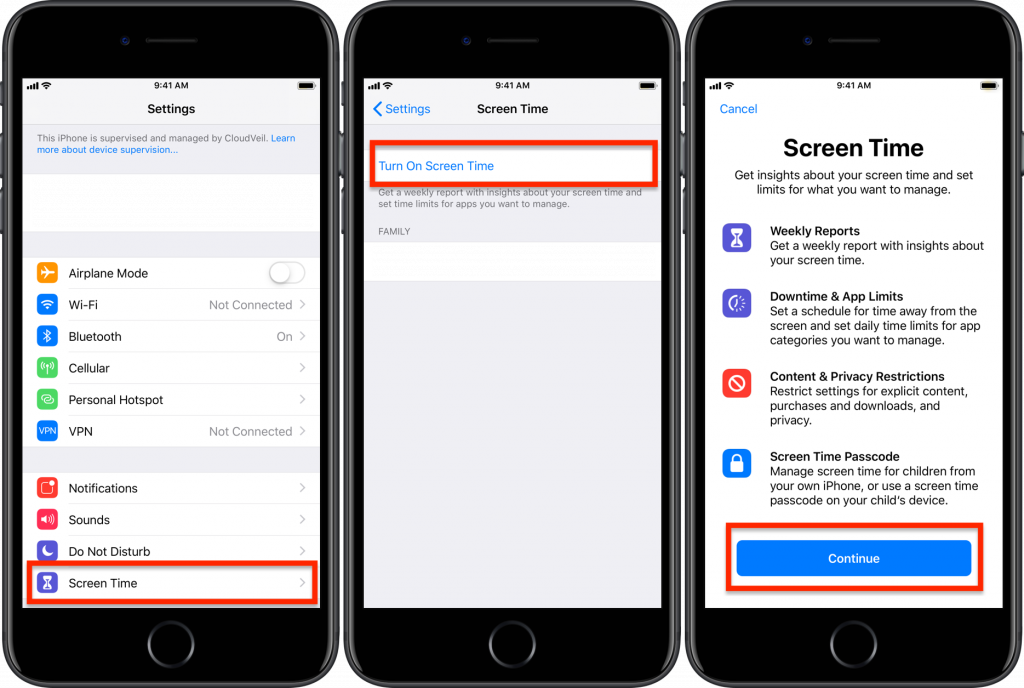
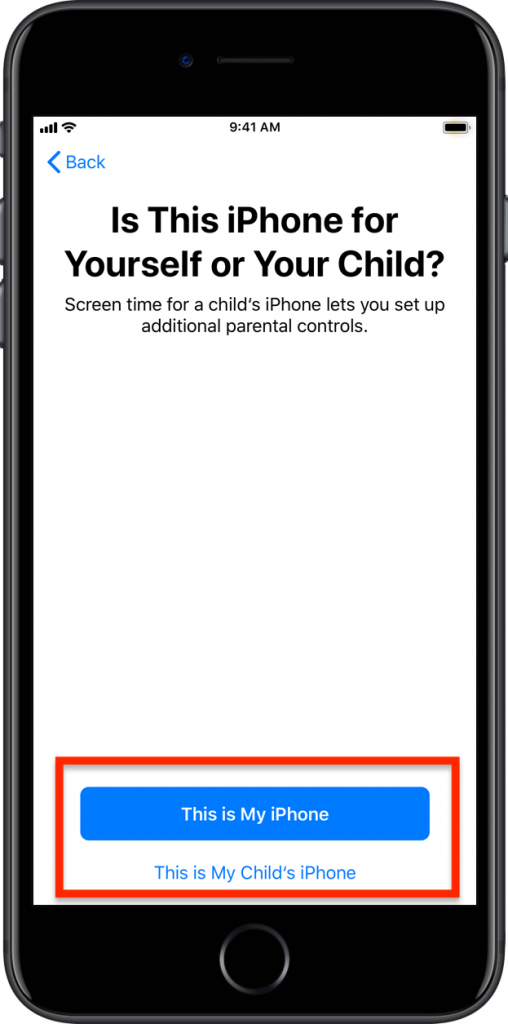
- Choose whether this is your child’s iPhone or your own.
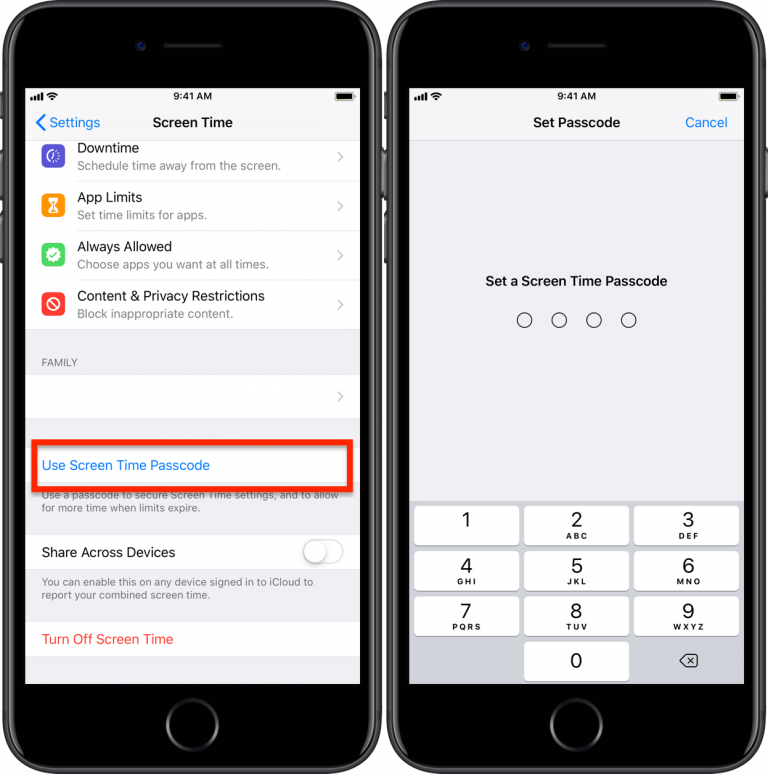
- Then choose Use Screen Time Passcode and set a passcode.
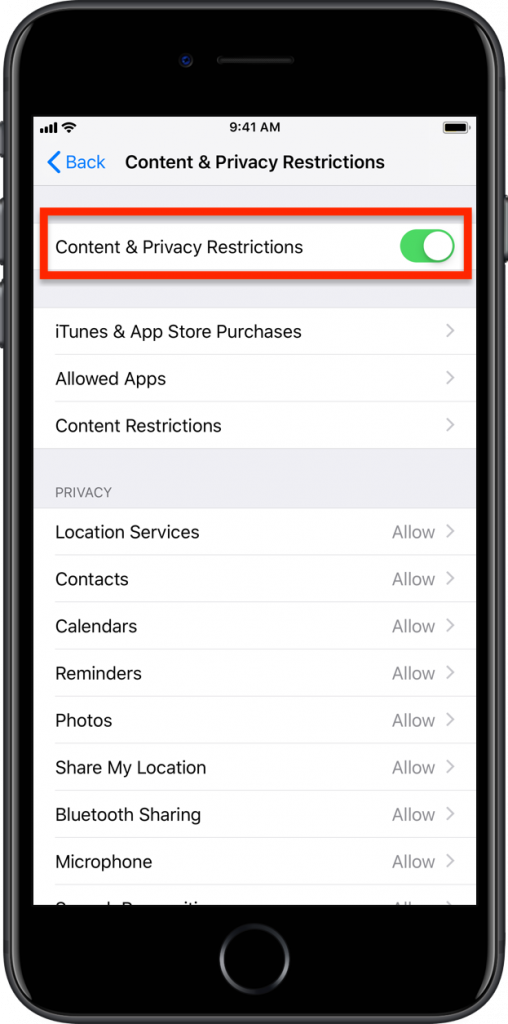
Turn on Content Restrictions
- Settings > Screen Time > Content & Privacy Restrictions > Content and Privacy Restrictions > ON.
Restricting the App Store
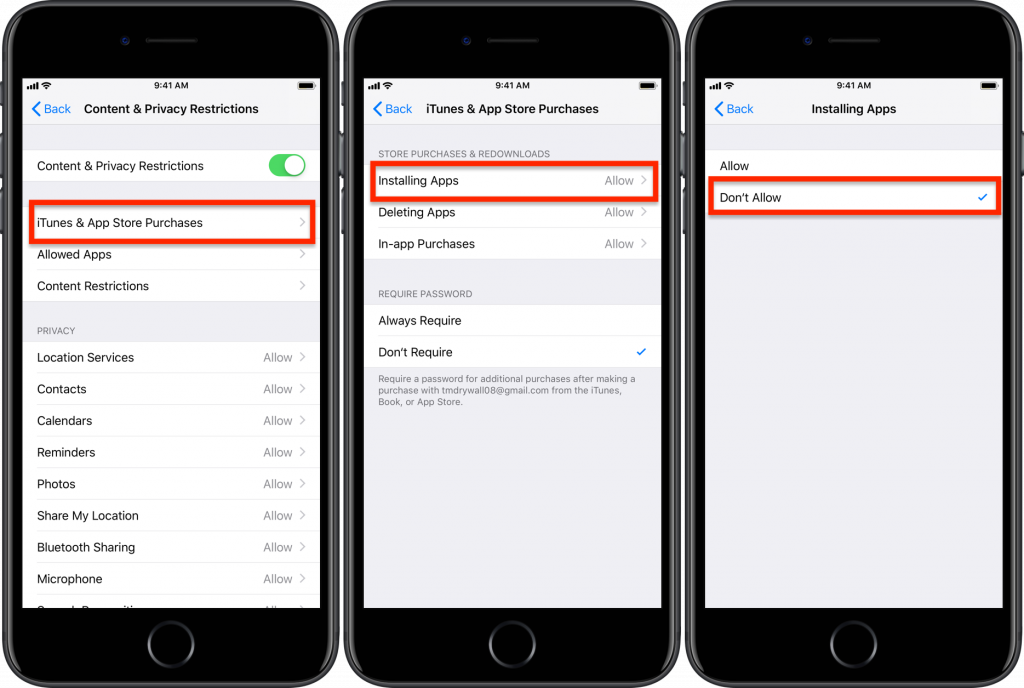
- The App Store can be locked by setting Installing Apps to Don’t Allow in the Settings > Screen Time > Content & Privacy Restrictions > iTunes and App Store Purchases
Restricting Apps
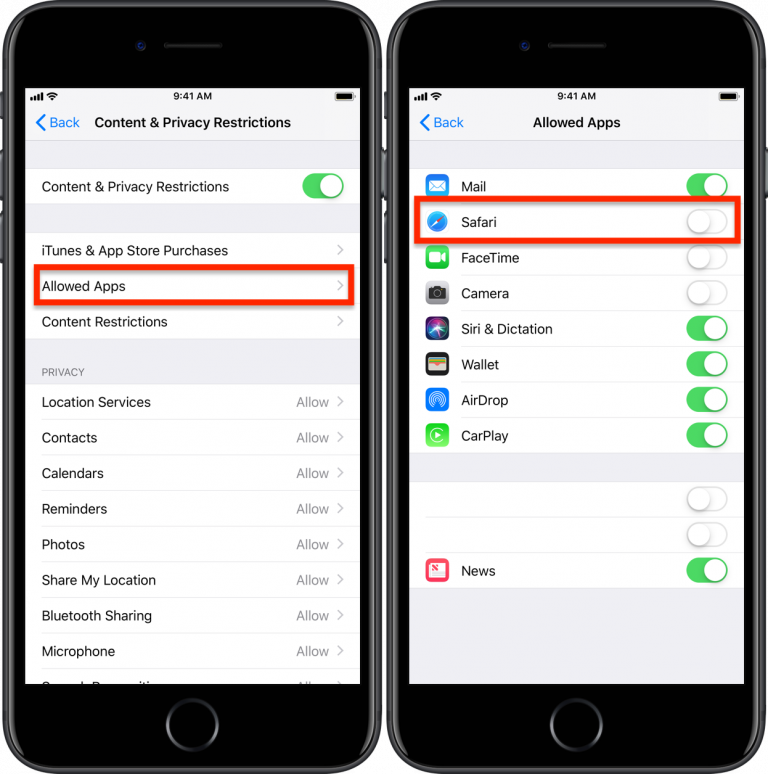
- Safari needs to be turned OFF in Settings > Screen Time > Content & Privacy Restrictions > Allowed Apps > Safari > OFF.
- You can also disable Camera, Facetime, News, and other apps from here.
Setting Content Restrictions
- Settings > Screen Time > Content & Privacy Restrictions > Content Restrictions
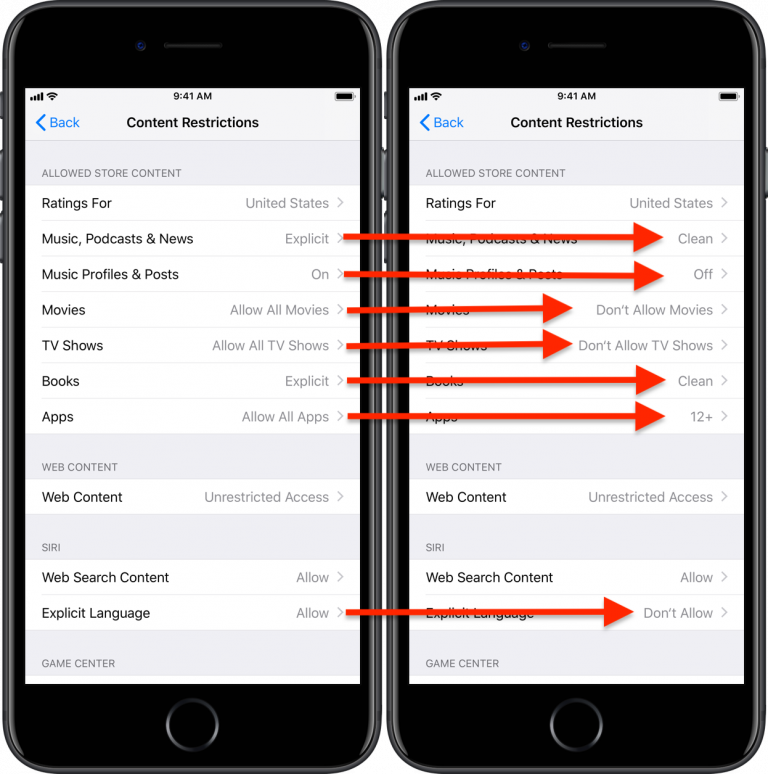
Music, Podcasts, News:
Music Profiles & Posts:
Movies:
TV Shows:
Books:
Apps:
Explicit Language
Web Content
Clean
Off
Don’t Allow Movies
Don’t Allow TV Shows
Clean
12+ or lower. (Mosts apps rated 17+ will allow unrestricted web access.)
Don’t allow
Limit Adult Websites